Navigation: system & sites
Summary
An introduction to navigating the Ultra system and within Course and Community sites.
System navigation
The main site navigation bar appears on the left hand side on a larger screen, or can be accessed through the three lines icon in the top left on a smaller screen.
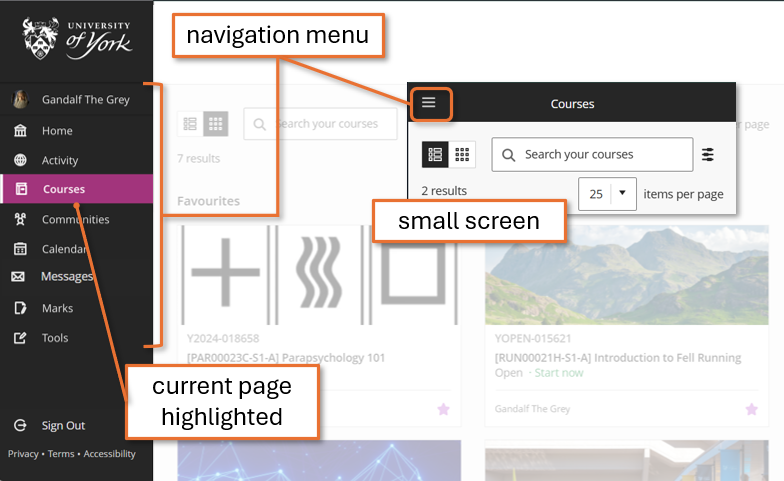
Use the menu to navigate between:
- Your profile: manage your notification settings, avatar and personal information
- Home: landing page with key system updates and departmental links
- Activity: summary of activity collated across all your sites
- Courses: access your module and other academic related sites
- Communities: access your non-academic sites, such as departmental noticeboards. If you are not enrolled on any Community sites, this option will not appear.
- Calendar: collates Due Dates across all your sites. Does not integrate with the Timetable or other UoY systems.
- Messages: summary of Messages (one-way communications to specific students) in your sites. This feature is turned off within sites by default.
- Marks: summary of assessments and marking to do across your sites
- Tools: access to some LTIs - it's not likely you'll need this page.
Your current page is highlighted in the menu.
Home
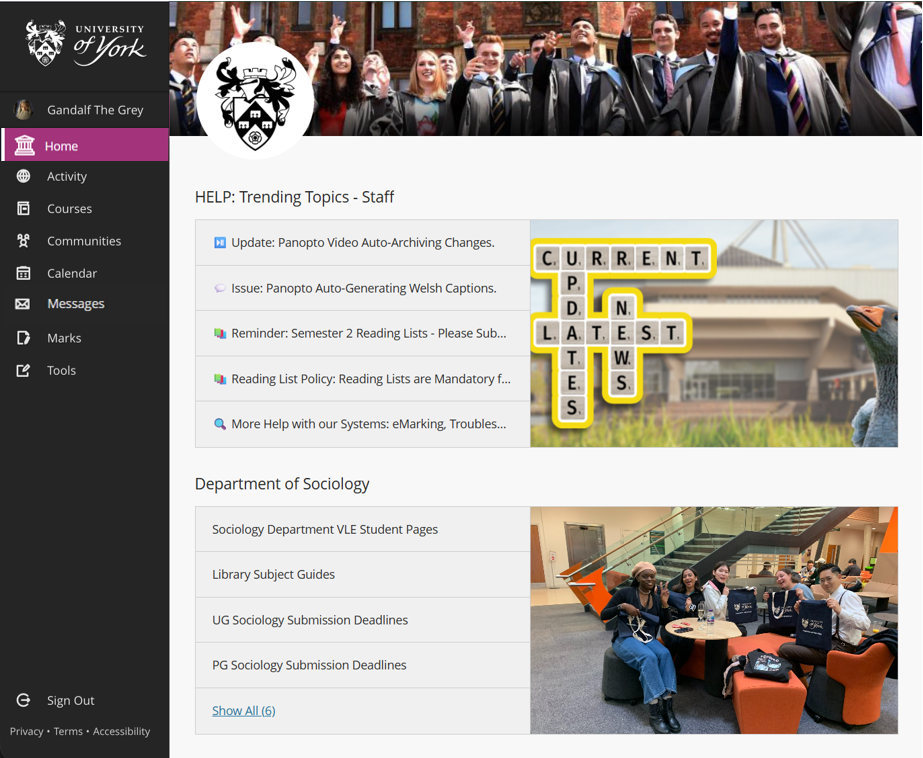
When you log into Ultra, you will land on the Home page, which contains:
- Communications from the VLE support team:
- trending topics (eg. preparing for CAP or a new semester)
- key support links (getting help, accessibility etc.)
- details of any system issues
- Department-specific links: mostly student-facing; handbooks, student support sites etc.
Courses & Communities
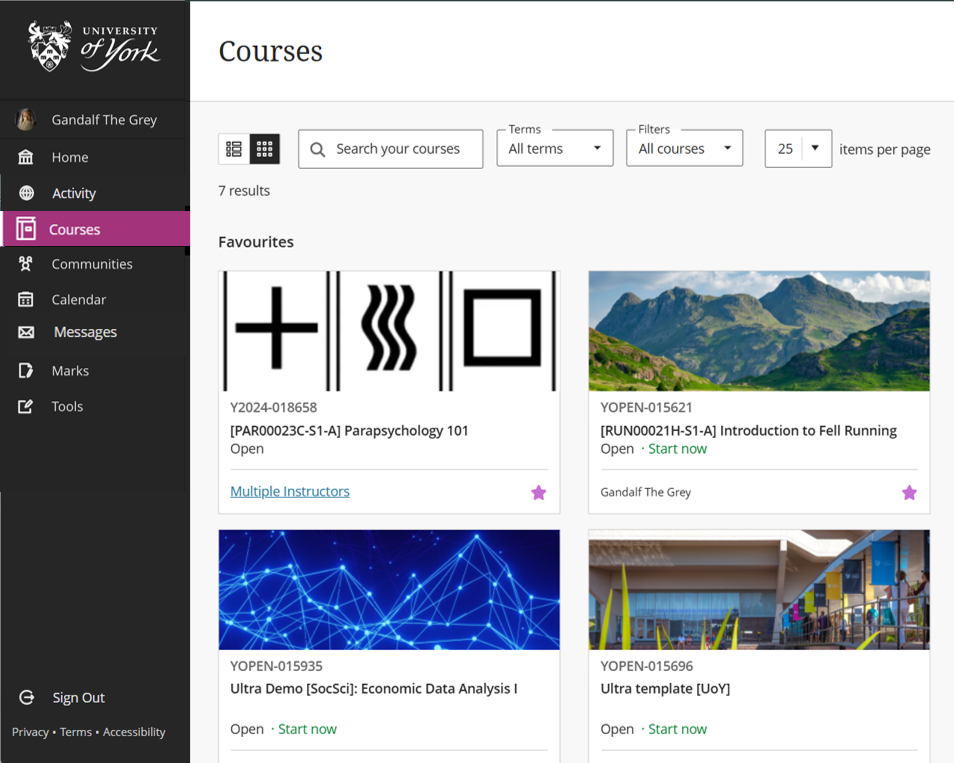
- Courses page: lists all your module sites. You can browse, filter and search for sites. Favourite key sites by clicking the star icon to pin them to the top of list. For more details, see the Courses list guide.
- Communities page: lists any non-academic sites. Use it in the the same way as the Courses page.
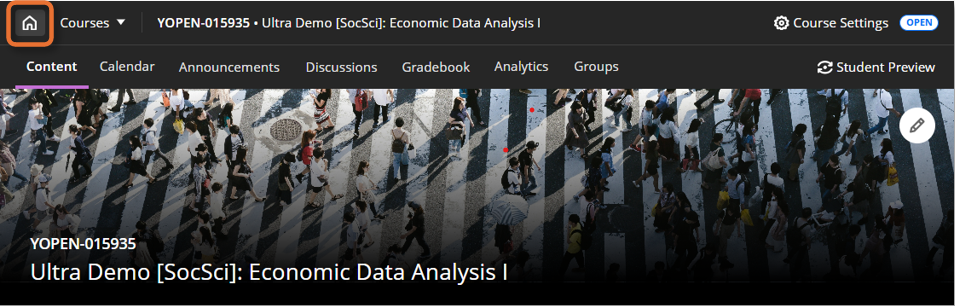
Within a site, click the Home icon to return to the Courses page.
Site navigation
Tip
Courses (module sites) and Community sites are navigated in the same way.
Top menu

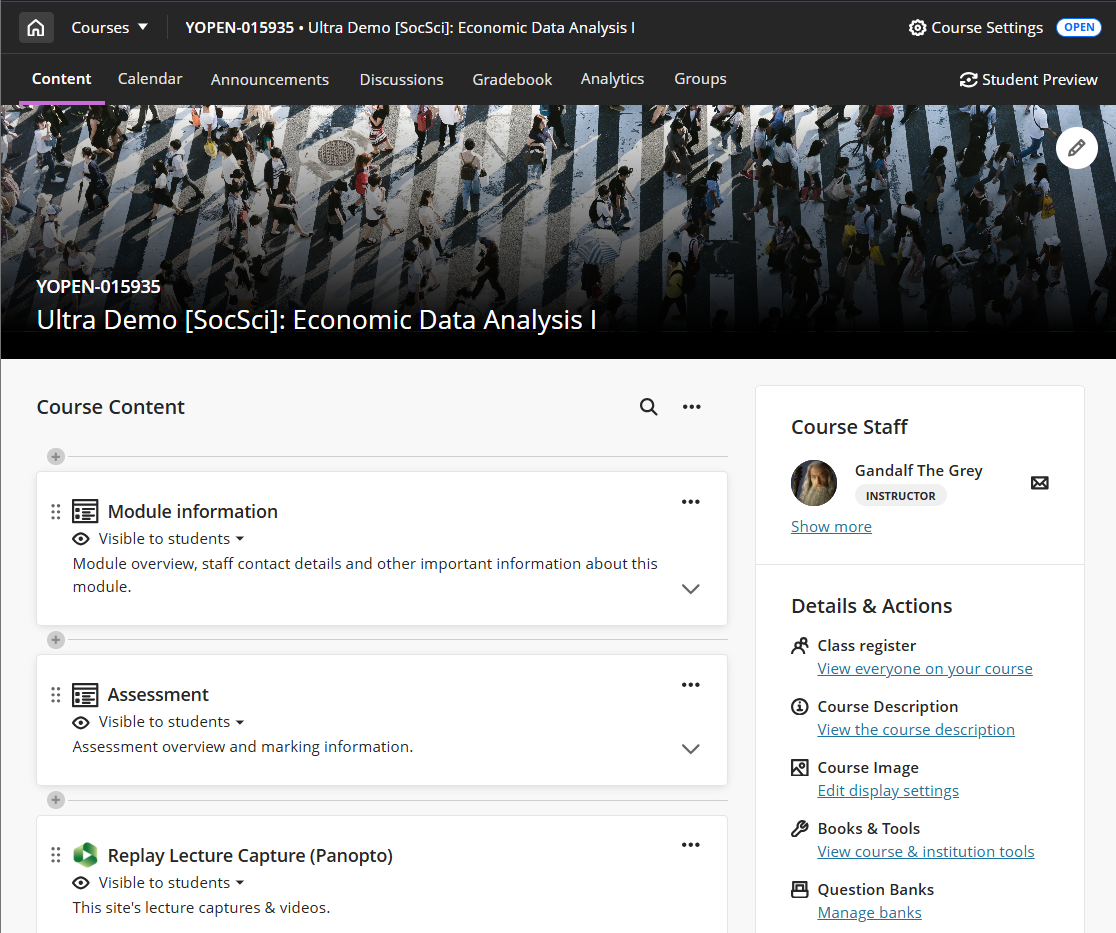
Within sites, navigate between parts of the site using the top menu. The menu tabs are:
- Content: the site homepage, with all site content.
- Calendar: collates Due Dates for assessments within the site. Does not integrate with the Timetable or other UoY systems.
- Announcements: send read-only messages to all enrolled students
- Gradebook: collates all assessments in the site.
- Analytics: information on student activity within the site.
- Groups: create and manage student groups for collaborative work or to support marking

The top menu banner also includes:
- Home: to close the site and return to the Courses page.
- Courses: course switcher to quickly move between recently-visited or favourited sites.
- Course Settings: to manage site availability and other site-wide settings.
- Student Preview: to check how content appears to students.
Content tab
The Content tab is the main area of the site, and acts as the site's home page. It has two sections:
- Course Content: where all the site content is added and viewed
- Details & Actions: some additional site features and settings, including:
- Class Register: set the Primary Instructor and enrol users if needed.
- Course Image: update the site banner.
- Books & Tools: for integrated tools, particularly the Ally accessibility report.
Navigating within pages
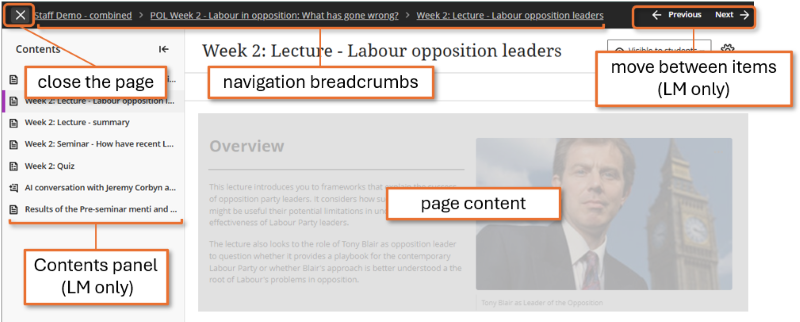
Content items within the site open as full-screen pages. The navigation bar at the top contains:
- X button to close the page/item and return to your previous location.
- Navigation breadcrumbs showing the item's location in the site. Note: Learning Module or Folder links are not clickable.
- Previous and Next arrows to move between items (Learning Module only)
For Learning Modules only, there is also a collapsable Contents panel on the left for quick access to all items within the Learning Module. See our Learning Modules guide for more details.
Page content appears in the main section of the page.